
An iOS app for students
Your syllabus wasn’t built for your calendar.
Upload a course syllabus. Plannr finds every assignment, quiz, and exam, you approve the dates, and they sync to a Google Calendar for each class.
The TestFlight beta is free while Plannr is in development. More in the FAQ
The setup you keep redoing
Every term brings four to six syllabi, each in its own format, each with a dozen dates scattered through it — readings, labs, quizzes, a midterm, a final.
Copying all of that into a calendar by hand is slow, easy to get wrong, and you do it again the moment a professor moves a deadline. Miss one line and you miss the assignment.
The part Plannr does for you
From a syllabus you scroll past
to a calendar you actually use
Read → extract → review → organized. You stay in control at the step that matters.
-
Read
It all starts in the syllabus
The dates you need are already written down — just trapped in a PDF, in prose, in a format that’s different for every class.
Introduction to Media Studies
Schedule of graded work
- Reading response 1 — due Friday, Week 3
- Quiz 2 — Thursday, Sep 25 (in class)
- Midterm exam — Week 6, during lecture
- Lab report 3 — due Oct 21, 11:59pm
- Final project — due finals week
Also in here
- Weekly readings, office hours, the late policy, grading breakdown…
Sample syllabus for illustration — fictitious course.
-
Extract
Plannr pulls out the graded work
It reads the whole document, keeps the assignments, quizzes, exams and labs, and resolves “Week 3 Friday” into a real date. Everything else stays behind.
Introduction to Media Studies
Schedule of graded work
- Reading response 1 — due Friday, Week 3
- Quiz 2 — Thursday, Sep 25 (in class)
- Midterm exam — Week 6, during lecture
- Lab report 3 — due Oct 21, 11:59pm
- Final project — due finals week
Homework Response 1 Sep 19 Quiz Quiz 2 Sep 25 Exam Midterm Oct 9 Lab Lab report 3 Oct 21 Homework Final project Dec 8 -
Review
Nothing syncs until you say so
You get the full list first. Accept a date, fix one that’s off, or drop it. Parsing is close, not perfect — so the last word is yours.
HW Reading response 1 Sep 19 AcceptedQuiz Quiz 2 Sep 25 AcceptedExam Midterm exam Oct 9 EditDeclineHW Final projectDec 8Dec 10 AcceptedLab Optional lab writeup Oct 21 DeclinedEdit the title, date, type or description on any event — or decline it — before it reaches your calendar.
Representative layout — the real review screen replaces this.
-
Organized
Your semester, on the calendar
Approved dates sync to a dedicated Google Calendar for each class, color-coded to match. Open your calendar and the whole term is just there.
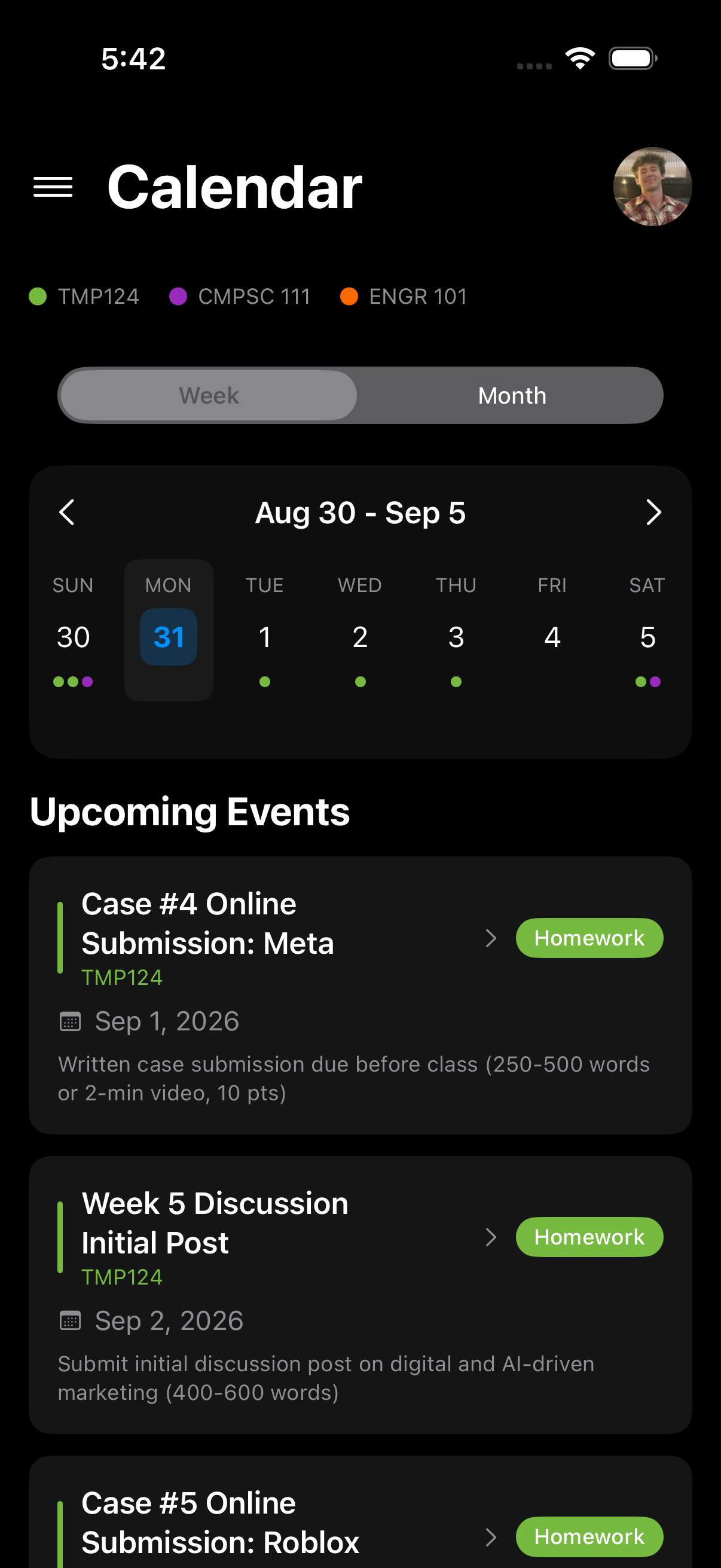
The result
What you get to keep
Not another calendar app — the organized version of the one you already use, plus the views that make a course load legible.
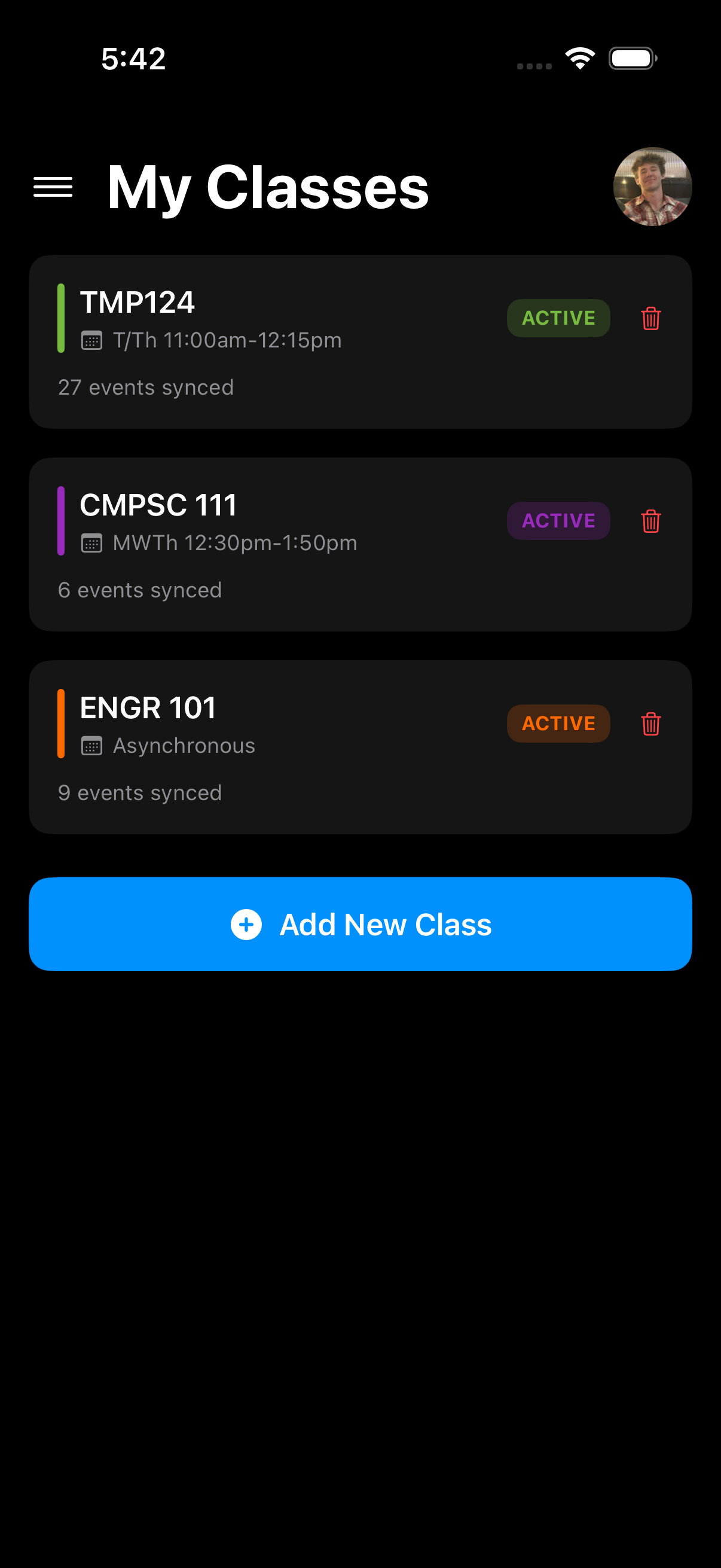
My Classes
Every course in one list, each with its own color and sync status. Group them into terms.
Calendar
A week or month view across every class. Filter to just exams, quizzes, homework or labs.
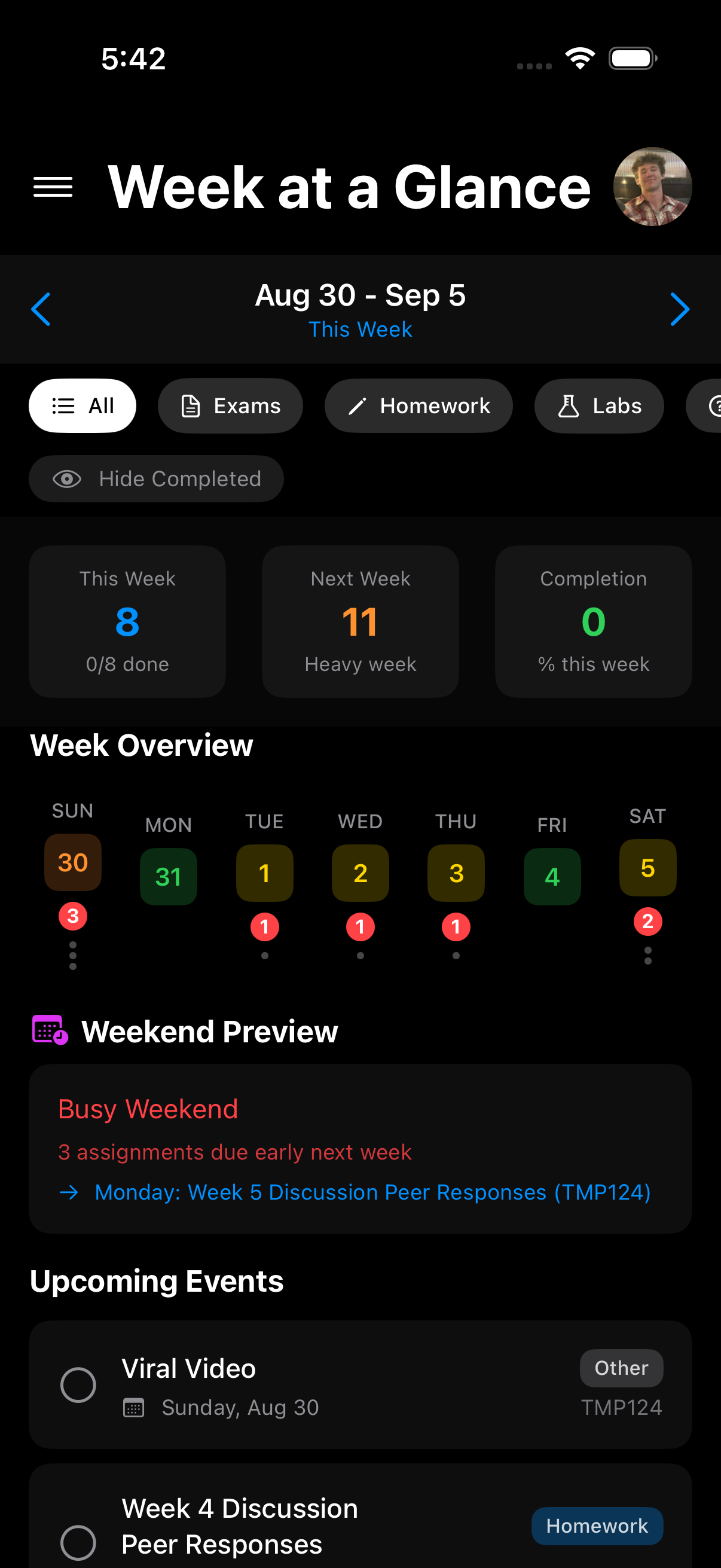
Week at a Glance
See a heavy week coming before it lands. Counts per day, plus a weekend preview.
When things change
You don’t start over
Grouped by term
File classes into a quarter, semester, or custom-length term. When the term ends, its classes go inactive on their own and drop out of your week view.
Re-upload when the syllabus changes
Plannr compares the new version against what’s already there and syncs only the difference. Edits you made by hand in Google Calendar stay put, and every sync is saved so you can roll a class back.
You approve it
Automatic, but never behind your back
Automatic dates are only useful if you can trust them. So Plannr keeps you in the loop.
Read the full Privacy Policy- Review every date before it syncs. Accept, edit, or decline each extracted event individually.
- Re-uploads keep your manual edits. Reconciling a changed syllabus preserves changes you made directly in Google Calendar.
- Every sync is restorable. Plannr snapshots each sync so you can roll a class back to an earlier version.
- Your syllabus text isn’t kept. It’s used to find dates and isn’t stored after processing; Google credentials are encrypted and used only server-side.
- Independent. Plannr isn’t affiliated with or endorsed by Google or any university.
What’s next
Your syllabus is just the start
Today Plannr turns a course syllabus into a reviewed calendar. From there it grows into the rest of keeping a term organised. Everything below is planned — not in the current beta.
Today · available now
- Syllabus
- Review
- Calendar
On the roadmap · planned, not yet available
-
Connect more of your coursework
- Canvas integrationPull assignments and due dates straight from Canvas.
- Apple CalendarSync to Apple Calendar, not just Google.
-
Plan the week for you
- Workload estimatesEstimate how long each assignment will take.
- Conflict detectionFlag weeks with overlapping deadlines.
- Daily agendaSuggest what to work on each day.
- Workload feedbackSharpen estimates from how long work actually took.
-
Focus on what counts
- Grade-weight priorityRank work by its impact on your final grade.
- Project breakdownSplit big projects into subtasks and milestones.
-
Ask and adjust in plain words
- Syllabus Q&AAsk about deadlines and course details.
- Natural-language editsChange your schedule by typing what you want.
- Deadline verificationFlag uncertain dates for you to confirm.
-
Work with your class
- Shared study groupsCoordinate schedules and study sessions with classmates.
Questions
Frequently asked
Google Calendar today, using a dedicated secondary calendar for each class. Apple Calendar support is planned but not available yet.
Upload a PDF or paste the text. Most syllabus formats work without any prep. Camera scan and Photos import are in the app but disabled for now — a “coming soon” notice — until server-side text recognition is enabled.
Extraction is generally accurate but not guaranteed error-free, especially on unusually formatted syllabi. That’s why every event goes through the review step — you can edit or remove any of them before anything syncs.
Your syllabus text is only used to extract dates and isn’t stored after processing. Google OAuth credentials are encrypted in transit and at rest, used only server-side, and never exposed to the app or logs. See the Privacy Policy for the full breakdown.
Nothing. The TestFlight beta is free while Plannr is in development — the button above takes you straight to the invitation. If Plannr later ships on the App Store, that version may be paid; the beta itself won’t be.
Plannr is an early beta, and whether it ships publicly — or as a paid app — hasn’t been decided. Joining now gets you free access to the current build and a say in where it goes. If there’s ever a paid launch, we’d look after the people who tested early, but there’s nothing concrete to promise yet.
Tap Join the Free Beta above — it opens Plannr’s TestFlight invitation. Open it on the iPhone or iPad you want Plannr on. If you don’t already have the free TestFlight app, install that first — then tap the invitation, tap Accept, and tap Install.
No. Plannr uses Google’s public APIs to authenticate and sync events, but it isn’t affiliated with or endorsed by Google or any university.
Set up your whole semester in one sitting
Free while Plannr is in beta. More in the FAQ